FreshByte Prospective Customer Feature
Setting up a Prospect Customer
To set up a prospect customer in FreshByte select Customers -> Prospect Customers
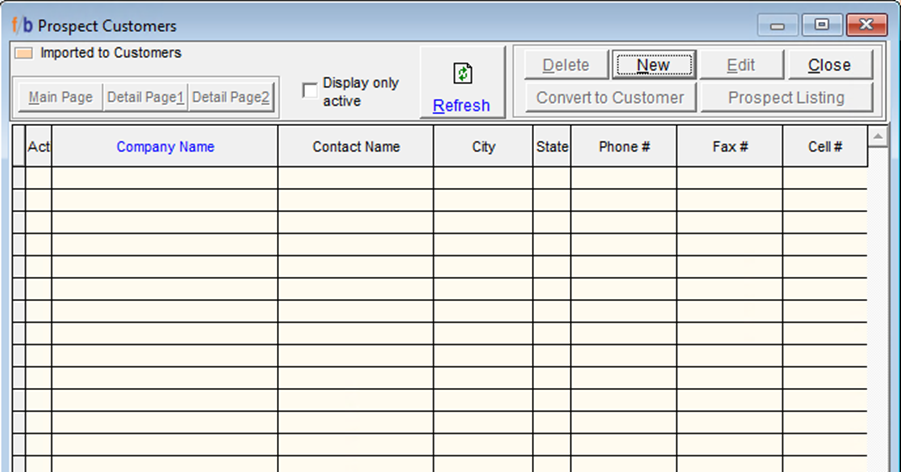
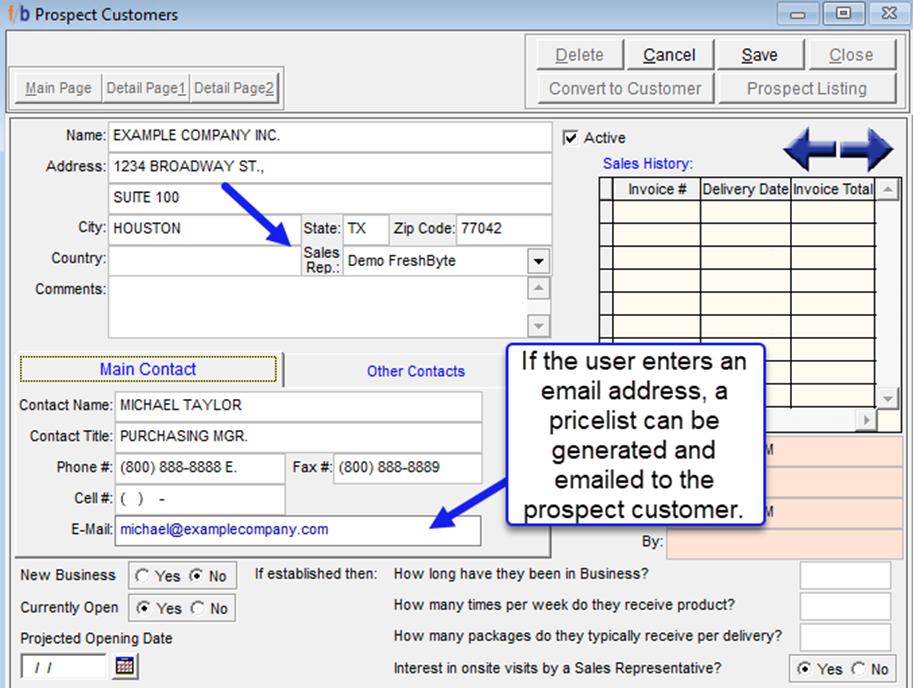
To create a new prospect customer, Select 'New' to access the main page. From this screen, the user can input the company information, contact details, and email address of the prospect. If available, the user can also enter additional business details. At this stage, the user can assign a salesperson to the prospective customer. It is important to note that there are no mandatory fields in the prospect customer listing. Once all information is entered and verified for accuracy, select 'Save'.
Pricelist to Prospect Customer
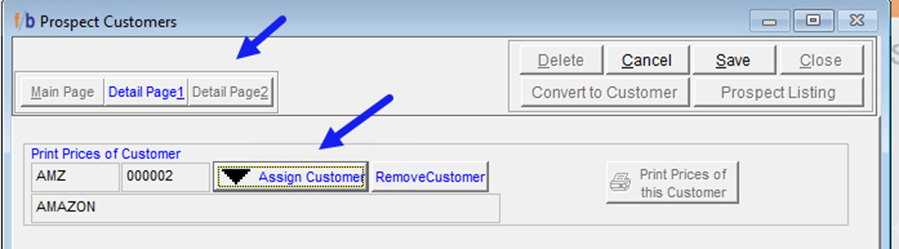
To send a price list to the prospective customer, follow the below steps:
1. Select the 'Detail 2' tab located at the top of the screen.
2. Select 'Edit' and then select 'Assign Customer'.
3. A lookup menu will appear, allowing you to select a current customer from the system to utilize for populating a price list for the prospective customer.
4. Finally, click on 'Save' to complete the process.
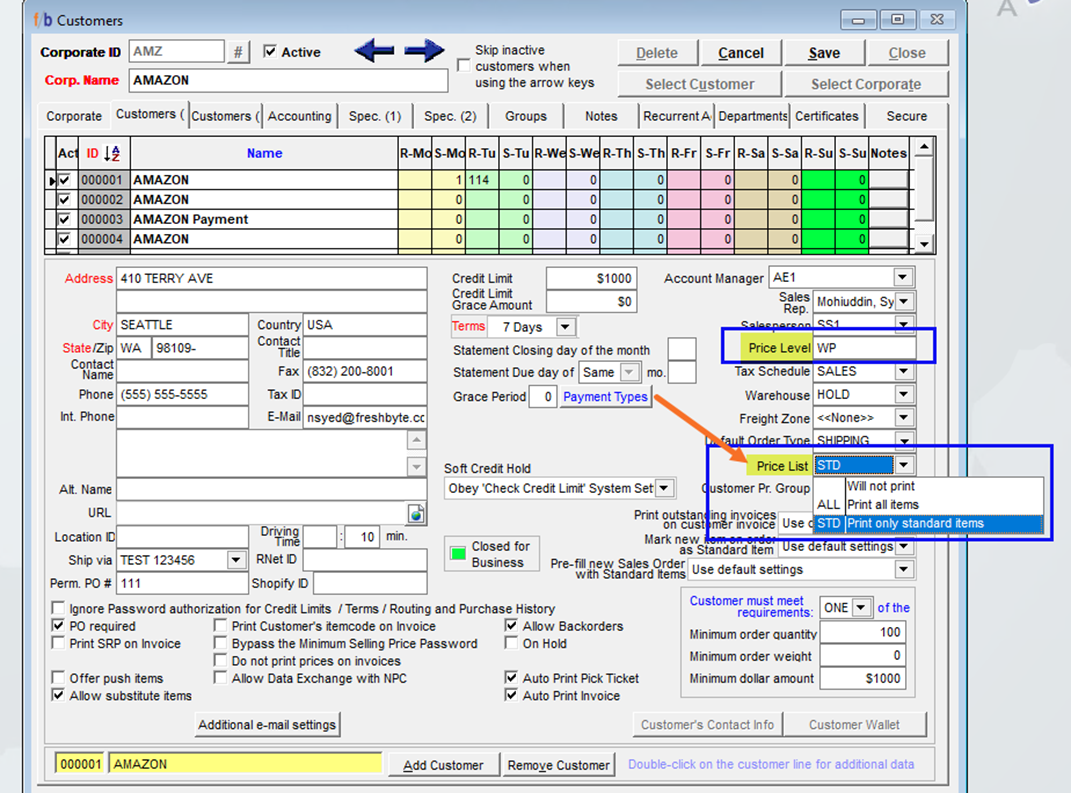
*Note: The customer selected from the system must have pricing established in the Customer Master and the Price List defined in the Customer Master.
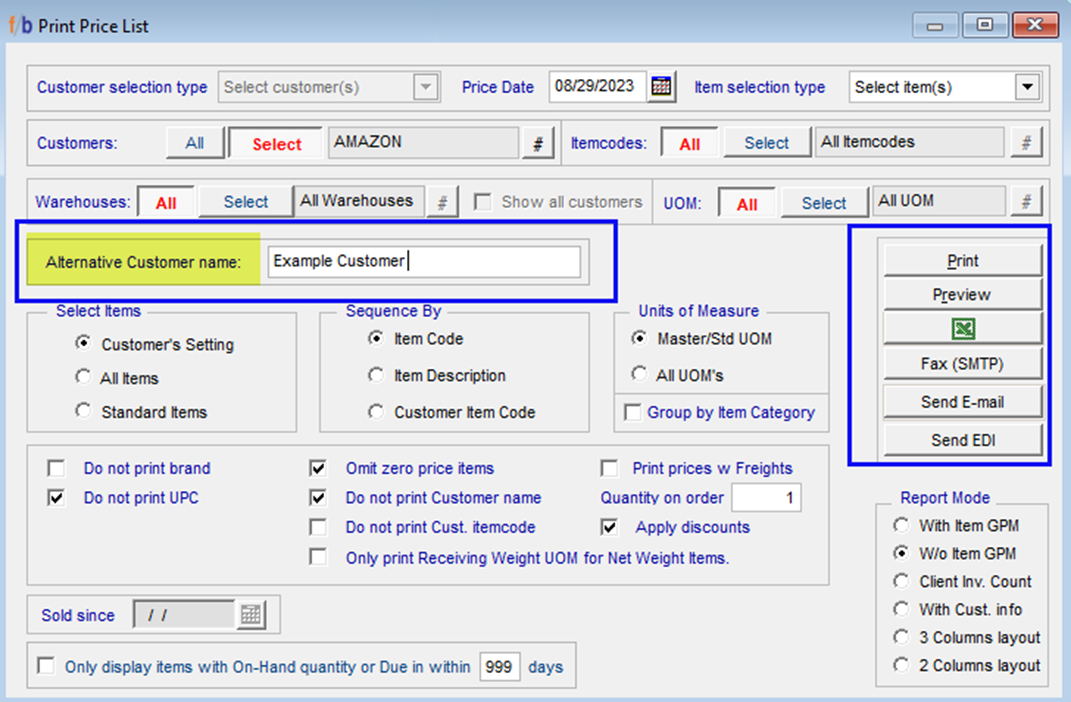
Next, select the 'Detail 2' tab on the screen, and click on the 'Print Prices of this Customer' button. This action will display the 'Print Price List' screen. In this screen, the user must enter the name of the 'Prospect Customer' in the 'Alternative Customer Name' field. The user can also make additional filter selections from this screen.
Once all information is reviewed and all the necessary selections are complete, the user has the option to preview, print, or email the price list if an email address is entered for the customer.
Prospect Customer Report
The user has the option to print a ‘Prospect Customer Listing' report directly from the Prospect Customers screen. Additionally, the report can be printed from Customer Reports -> Prospect Customer Listing
The report can be filtered by a Salesperson or Prospective customers.
Convert Prospect Customer
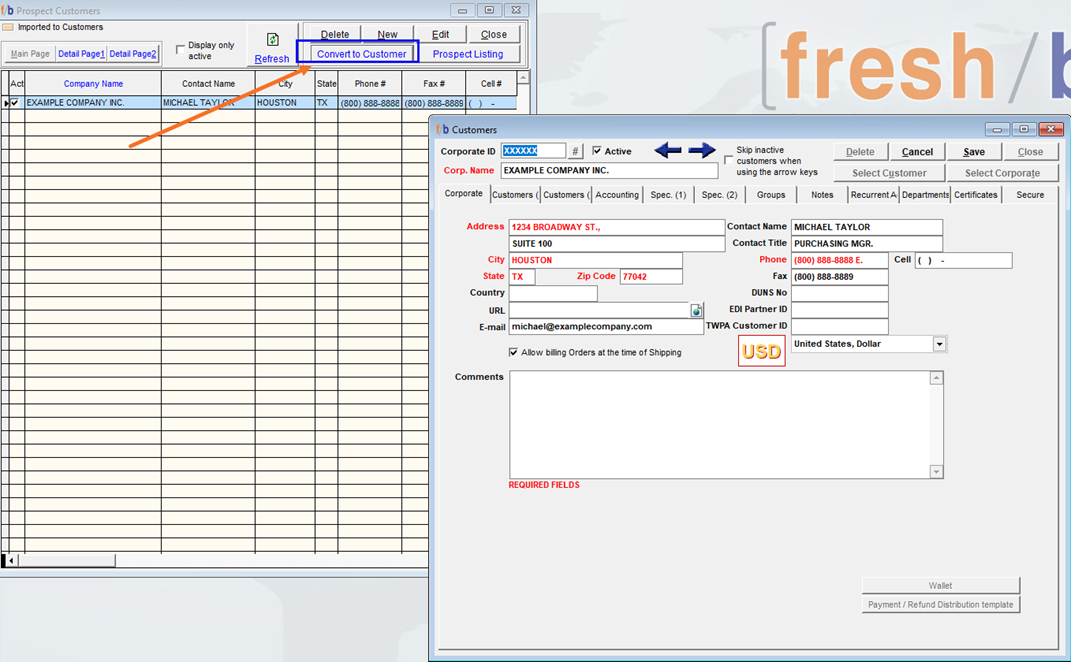
The user has the option to convert a ‘Prospect Customer’ to a regular Customer in the Customer Master from the Prospect Customer screen. The user must select the prospective customer and then Select the ‘Convert to Customer’ button. The system launches the Customer Master File and populates all information from the Prospect Customer Screen. The user must enter a Corporate ID and update the required information needed to save the new customer.
Related Articles
FreshByte Credit Hold Feature
FreshByte's 'Soft Credit Hold' feature enables users to input orders for customers who have exceeded their credit terms. This feature allows administrative personnel to review orders placed on Soft Credit Hold before authorizing them for processing. ...FreshByte Write-Off Customer Overpayments Balances
FreshByte provides the option to write off Customer Overpayments through a utility function. This feature is dependent on User Security settings. Note: A Sundry Item must be defined in System Settings to use the utility. In addition, the user has the ...FreshByte AR Customer/Payment Refund Import
FreshByte provides a powerful feature that allows users to directly import customer payments into the Payment/Refund Center. This feature seamlessly integrates corporate payments, open receipts, and credits, which can then be assigned to specific ...Customer Master – Permanent Notes
FreshByte allows you to add permanent customer-specific notes within the Customer Master. These notes are stored at the customer level and cannot be modified from the Sales Order screen, ensuring consistent and controlled communication. There are ...Customer Refund Check - Sundry Checks
Customer Refund Check - Sundry Checks FreshByte provides the option to issue a Customer Refund Check if there is a Credit Memo or balance due to a customer, and the customer would like a check issued. Navigate to Vendors -> Sundry Checks -> Customer ...