FreshByte Lot Traceability: Recall Instructions
FreshByte Lot Traceability
Lot traceability is a critical process that ensures full visibility and control over products as they move through the supply chain, from raw materials to the final customer. It enables businesses to quickly trace a product’s history, ensuring that any issues—such as defects, contamination, or recalls—can be addressed promptly and efficiently.
This system assigns a unique lot number to each batch or production run, documenting key details at each step of the process. These include supplier information, production dates, quality checks, shipping details, and customer invoices. By doing so, lot traceability eliminates guesswork, minimizes risks, and enhances product safety.
In the event of a recall, lot traceability enables the swift and accurate identification of affected products, allowing businesses to act quickly. Whether tracing products forward through the supply chain or backward to customers or vendors, FreshByte helps maintain compliance with industry regulations, improves transparency, and ensures the highest standards of quality and safety.
Traceability Forward Mode
Inventory -> Inventory Reports -> Lot Traceability
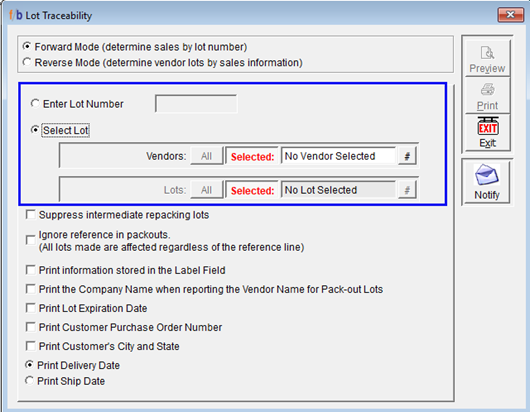
By default, the system opens in Forward Mode, which allows the user to trace an inventory item from its origin (vendor/lot) through internal processing and/or distribution to customers.
The user can scan initiate a search in one of the following ways:
- Enter a Lot Number: Directly trace a specific lot by entering the complete lot number. The user must enter the entire lot number.
- ‘Select Lot’ Option: Provides a dropdown to search by Vendor and lot number.
The user can click (#) next to Vendors to display the Vendor Lookup. The user can then select () next to Lots to display a lookup of all associated lots sold by the vendor, the date range, item information, received dates, and Vendor lot numbers.
- Reviewing and Printing Results:
- Once a vendor and/or lot is selected, the system displays a full breakdown of the lot’s usage and movement.
- This includes any Processing, Repacking, or Distribution.
- The user can then choose to print the traceability report for fast reference during audits, recalls, or internal quality reviews.
- The system will display all consumption of the item and/or the Customer information, invoice number and contact information.
Traceability Reverse Mode
Inventory -> Inventory Reports -> Lot Traceability
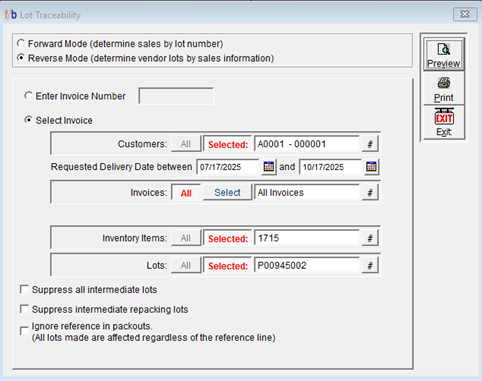
The Traceability Reverse mode function allows users to trace an inventory item starting from the Sales Information, enabling efficient tracking for audits, recalls, or quality control.
The user can initiate a search in one of the following ways:
- Select Invoice Number: Directly trace an Invoice number to origin by entering a Sales Invoice Number to trace the specific lot(s) associated with that sale.
- Select Invoice Option: Click the ‘Select Invoice’ Radio Button to search using multiple criteria:
- Customer
- Date Range
- Invoice Number Lookup
- Inventory Item Lookup
Customer Lookup
- Click the (#) icon next to Customer to open the Customer Lookup window.
- Optionally, apply a calendar date range filter to narrow results to specific delivery dates.
Invoice Lookup
- Click the (#) icon next to Invoice to display all invoices associated with the selected customer.
Inventory Item Lookup
- Click the (#) icon next to Inventory Items to view all items sold to the selected customer.
Reviewing Traceability Results
Once the Invoice, Customer, and/or Item are selected:
- The system displays a full traceability breakdown of the lot’s origin, including:
Processing details
- Repacking history
- The results also include:
- Originating Vendor Information
- Purchase Order Number
- Date Received
- Quantity Received
Printing the Traceability Report
- After reviewing the traceability results, users can print the report for:
- Regulatory or third-party audits
- Product recall investigations
- Internal quality assurance reviews
Related Articles
FreshByte Physical Inventory Count Sheet Export and Import
FreshByte provides the option to export a count sheet to Excel and enter counted quantities. Below are the steps to complete this process. Users have the ability to export a count sheet after it has been created within FreshByte. The user must first ...Inventory -Item Master How to Create Items in FreshByte
Inventory Item Master FreshByte Software is dependent on the company setting up Inventory Items within the system for any item that the company would like to track. This includes both Inventory Items sold as well as supply items used in the packaging ...FreshByte Standard Labels
FreshByte Software provides Standard Label Options within the system. Below are the options, parameters, and examples of labels within the system. FreshByte Receiver Labels Purchases -> Orders -> (Inventory) & Receiving (Inventory) Master Count ...FreshByte Software Shortcut Key Functions
FreshByte provides shortcut keys to allow the user to navigate throughout the system. The list is defined below. Bold: The screens listed in bold include quick-access options. *** The three asterisks indicate the most common commands on the screens. ...FreshByte -Creating a New Vendor
Creating a new Vendor in FreshByte A Vendor Master file is required for each Vendor. Vendors must be entered in the Vendor Master before a Purchase Order can be entered. Vendors must be created in the system for all expenses for the company. This ...