FreshByte Standard Labels
FreshByte Software provides Standard Label Options within the system. Below are the options, parameters, and examples of labels within the system.
FreshByte Receiver Labels
Purchases -> Orders -> (Inventory) & Receiving (Inventory)
- Master Count Labels ( 2 x 4 )The user can only print the label for the master unit of measure for all Inventory line items and the order quantity on the PO. This label will not print for Inventory line items with Alternate units of measure (AUOM's). Ex: Eaches if the master unit of measure is cases.
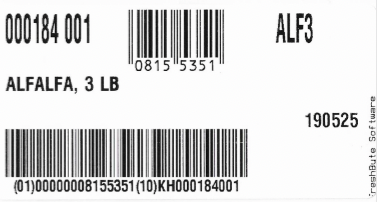
- Pallet Labels ( 4 x 6 )
The user must populate the number of pallets per line within the '# of Pallets' on the line item or the pallet configuration field in the Item Master (Units tab).
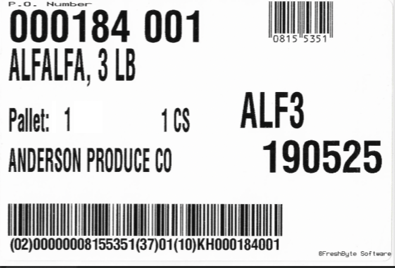
- Ordered Unit of Measure (UOM) ( 2 x 4 )
The user has the ability to print the ordered UOM label for any unit of measure for all Inventory line items and the system will print the order quantity on the PO. - Finished Goods ( 4 x 6 )
The user must populate the number of pallets per line within the '# of Pallets' on the line item or it must be entered in the pallet configuration field in the Item Master (Units tab).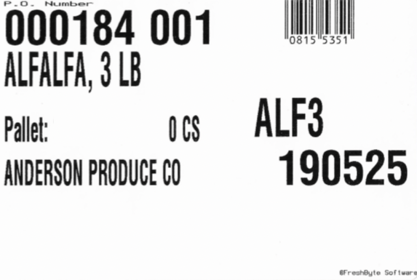
Both Labels can be printed for Open, Received, or Both Open and Received line items together on a PO.
The user can reprint labels under Purchases -> Reports -> Reprint Receiver Labels. Labels can be printed for specific line items under, # of MOUM to Reprint or # of Full Pallets to Reprint.
Packout Labels
Packouts -> Process Packouts -> Regular Packouts or Consignment Packouts
The user can print and reprint packout labels from the above menus.
- Master Count Labels ( 2 x 4 )The user can only print the label for master unit of measure MUOM inventory line items within the Packout. This label will not print for inventory line items with alternate units of measure. The number of labels print with the order quantity per line item under 'Items Made' tab.
- Pallet Labels ( 4 x 6 )
The user must populate the number of pallets per line item made within the '# of Pallets' on the line item or the item must be configured in the pallet configuration field in the Item Master (Units tab).
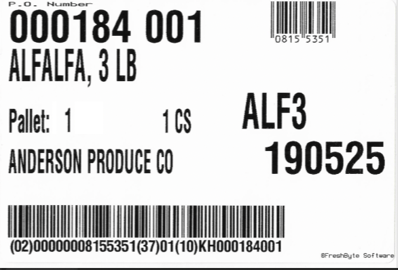
- Ordered Unit of Measure (UOM) ( 2 x 4 )
The user has the ability to print the ordered UOM label for any unit of measure for all Inventory line items and the system will print the order quantity on the PO.
Shipping Labels
Labels can be printed under Sales -> Shipping -> Print Labels. The user has the ability to print the Ordered Unit of Measure UOM or the Master unit of measure MUOM. There are various label options available:
- Pallet Count
- Combo (Thermal)
- Split label (Thermal)
- Full/Partial Pallet Count
- Shipment Packages
- Ordered UOM
- Master UOM (Alt) Alternate Unit of MeasureShipment Package Labels ( 2 x 4 )
The user can print the shipment labels. The label will display the Customer's name and address based on the Sales Order. The number of labels will print based on the order quantity.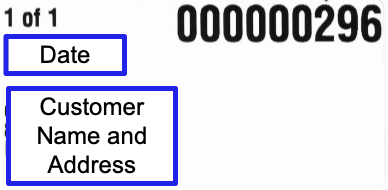
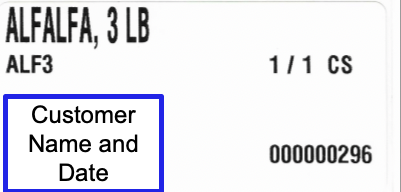
- Ordered Unit of Measure (UOM) ( 2 x 4 )
The user can print the ordered UOM label based on the unit of measure on the Sales Order. The number of labels will print based on the order quantity.
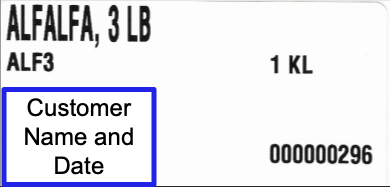
- Alternate Unit of Measure (AUOM) ( 2 x 4 )
The user has the ability to print the ordered AUOM label based on the unit of measure on the Sales Order. The number of labels will print based on the order quantity.
Shipping labels can be reprinted under Sales -> Reports (P-Z) -> Sales Order Item Labels. The user has the ability to reprint labels by date range, customer, or specific invoices.
Related Articles
Inventory -Item Master How to Create Items in FreshByte
Inventory Item Master FreshByte Software is dependent on the company setting up Inventory Items within the system for any item that the company would like to track. This includes both Inventory Items sold as well as supply items used in the packaging ...FreshByte Physical Inventory Count Sheet Export and Import
FreshByte provides the option to export a count sheet to Excel and enter counted quantities. Below are the steps to complete this process. Users have the ability to export a count sheet after it has been created within FreshByte. The user must first ...FreshByte Software Shortcut Key Functions
FreshByte Software | Shortcut Keys How to read this guide: ★ marks the most commonly used commands in each screen. For buttons with underlined characters in the FreshByte interface, press ALT + the underlined character to execute that command. Most ...FreshByte 'Push Items List' Sales Orders
FreshByte includes a ‘Push Items List’ feature that provides companies the option to add a list of items that display at the time of saving the Sales Order. This tool provides a great resource to offer overstock or short-dated items. Push Items ...FreshByte -Creating a New Vendor
Creating a new Vendor in FreshByte A Vendor Master file is required for each Vendor. Vendors must be entered in the Vendor Master before a Purchase Order can be entered. Vendors must be created in the system for all expenses for the company. This ...