FreshByte Physical Inventory Count Sheet Export and Import
Users have the ability to export a count sheet after it has been created within FreshByte. The user must first go through the Physical Inventory routine within the system.
1- Make sure all Sales Orders are shipped within the system or the dates are moved out past the Physical Inventory Date.
2- Make sure that all packouts for Inventory produced that is on hand for the Physical Inventory Date are closed.
3- Make sure all POs are received in the system for Inventory that is on hand, and move out the dates for Inventory that is in transit.
Inventory -> Physical Inventory -> Make Physical Inventory Snapshot
Once this is completed, the user can then make a Physical Inventory Snapshot. Make sure the date matches the date that the Inventory Count sheets will be counted.
Inventory -> Physical Inventory -> Physical Inventory Count Sheets
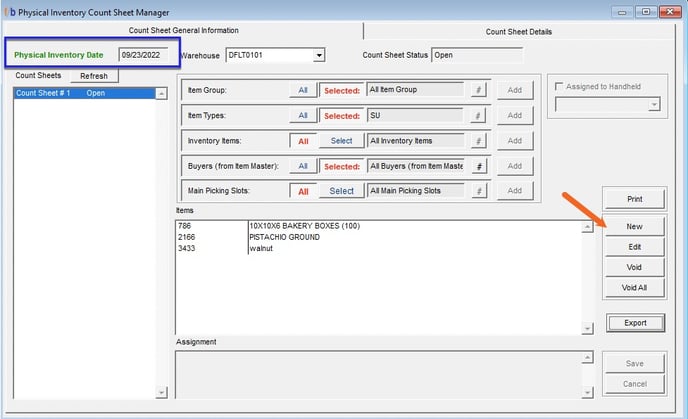
- The user creates the count sheets within FreshByte. The user has the option to create count sheets by Inventory Item Group, Inventory Item Types, Inventory Items, or by buyer.
*Important* In order to Import Item Counts, the database must be in lot mode. Slotting should be disabled.
Count Sheet General Information Screen to create the count sheet(s).
- After the count sheet is created, select the 'Count Sheet Details Tab' displayed below. The user has the option to select individual count sheets to export to Excel from this tab, or select all count sheets that were created. The Excel Export is located at the bottom of the screen.
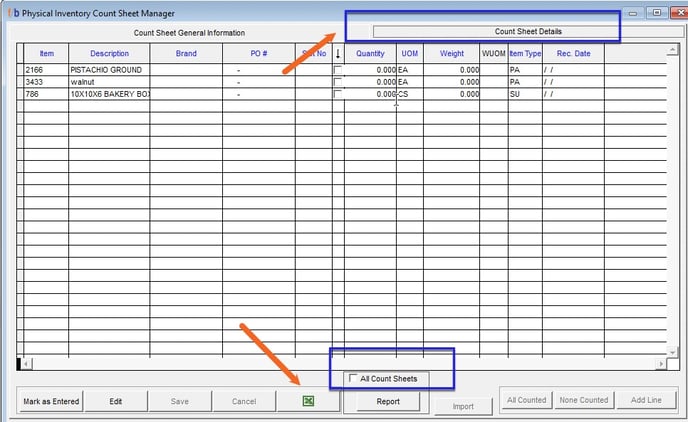
- Enter the counted quantity in the 'Counted Field'.

Entries should be made in Counted Quantity.
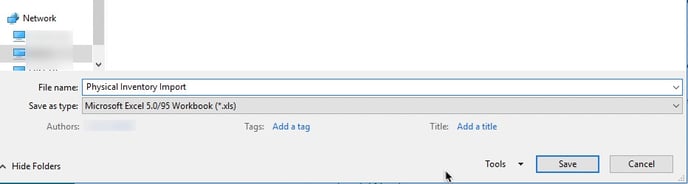
- The user must save the file as a Microsoft Excel 5.0/95 Workbook (xls) in a location on the computer.
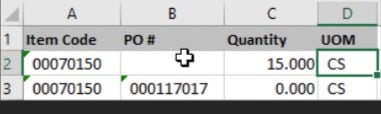
The file can be imported as is. The following columns are the only columns required for the Import:
- Item Code
- Lot Number (PO #)
- Qty
- UOM (Unit of Measure)
2. Return to the Physical Inventory Count Sheets/ Count Sheet Details Tab (2nd tab).
3. At the bottom of the screen, select the 'Import Counts Button'.
4. Select the Excel file to import and the counted quantities will import into the count sheet.
*NOTE: If there are any errors within the file, an error log will display showing the details of all errors. If this happens, return to the Excel spreadsheet, correct any errors, and save the file.
Once errors have been corrected, close the Error dialog box within FreshByte and repeat the 'Import Counts' process again.
Once all counts have been imported successfully, select 'Save'.
Related Articles
FreshByte AR Customer/Payment Refund Import
FreshByte provides a powerful feature that allows users to directly import customer payments into the Payment/Refund Center. This feature seamlessly integrates corporate payments, open receipts, and credits, which can then be assigned to specific ...Inventory -Item Master How to Create Items in FreshByte
Inventory Item Master FreshByte Software is dependent on the company setting up Inventory Items within the system for any item that the company would like to track. This includes both Inventory Items sold as well as supply items used in the packaging ...FreshByte Standard Labels
FreshByte Software provides Standard Label Options within the system. Below are the options, parameters, and examples of labels within the system. FreshByte Receiver Labels Purchases -> Orders -> (Inventory) & Receiving (Inventory) Master Count ...FreshByte Software Shortcut Key Functions
FreshByte Software | Shortcut Keys How to read this guide: ★ marks the most commonly used commands in each screen. For buttons with underlined characters in the FreshByte interface, press ALT + the underlined character to execute that command. Most ...FreshByte -Creating a New Vendor
Creating a new Vendor in FreshByte A Vendor Master file is required for each Vendor. Vendors must be entered in the Vendor Master before a Purchase Order can be entered. Vendors must be created in the system for all expenses for the company. This ...