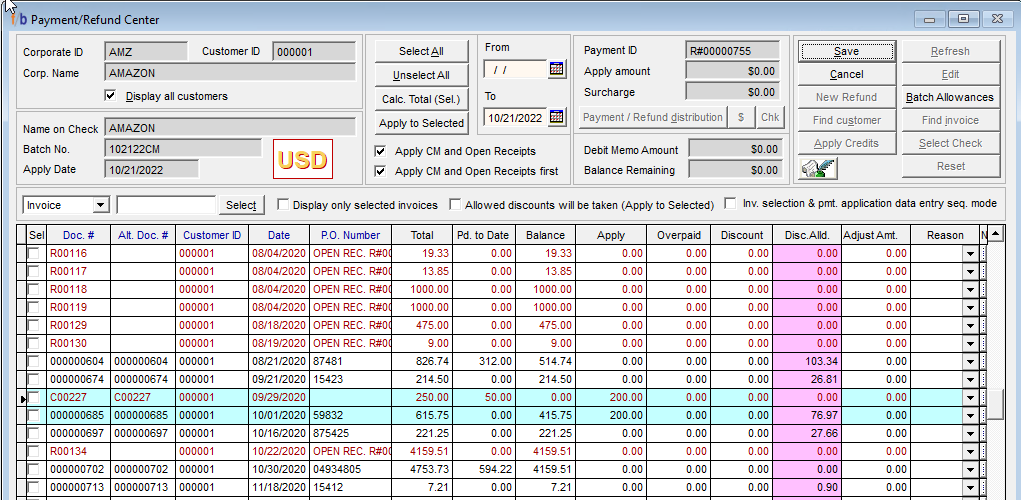
FreshByte recommends applying Customer Credit Memos and Open Receipts to Invoices through the Payment/Refund Center. This option allows the user to 'unapply' the in the system if necessary.
Customers -> Payment /Refund Center
The user has the option to create a new batch or select an existing batch in the system.
Next, the user selects the batch details tab and selects the 'Payment/Refund Center' button to launch the Payment/Refund Center Screen.
FB Recommendation: Enter a new batch that is used weekly strictly for applying Credit Memos and Open Receipts
1. Select 'Find Customer' to launch the customer lookup and select the customer.
2. Select 'New Payment' to activate the screen
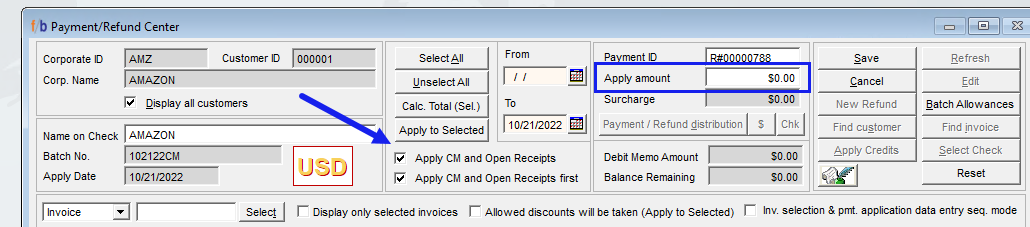
3. The payment amount should be zero (0.00).
4. Make sure that the box on the screen 'Apply Open CM and Open Receipts' is checked.
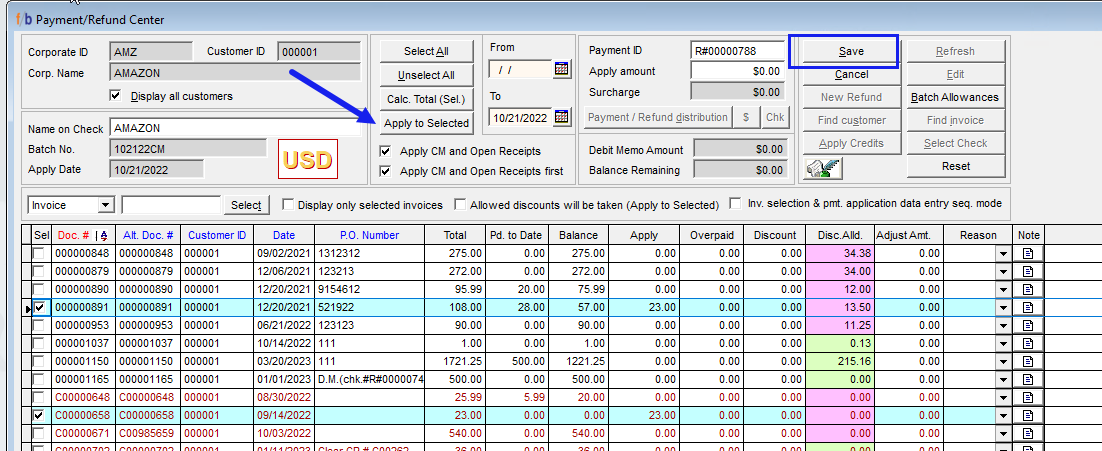
 5. The user has the option to select the Credit Memo by checking the box on the left and then selecting the box to the left of the corresponding invoice if the entire Credit Memo will be applied to the Invoice. The user then selects the 'Apply to Selected' Button to apply the Credit Memo to the Invoice and selects 'Save' when complete.
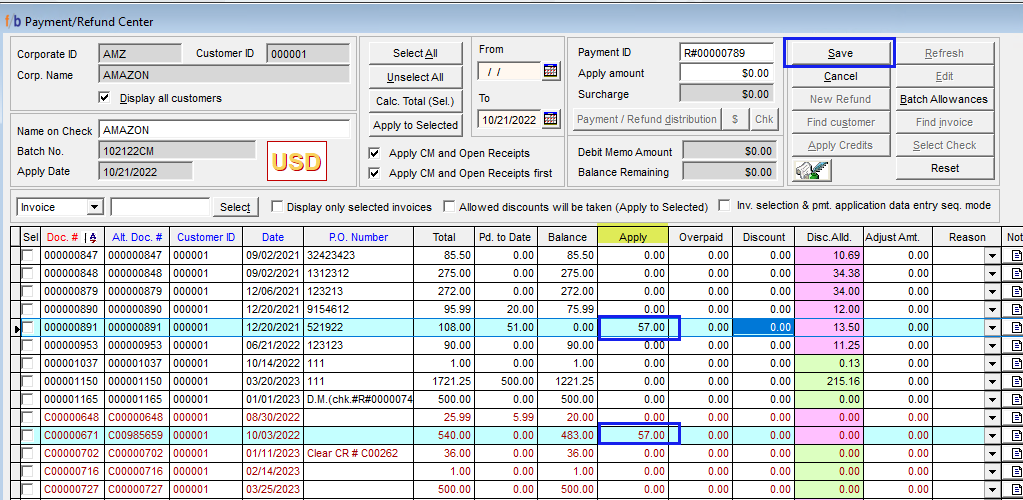
6. The user can enter the credit amount in the 'Apply' field of the Credit Memo and the same amount in the 'Apply' field of the corresponding Invoice if the total amount of the credit memo will not be applied. The user has the option to apply the Credit memo to multiple invoices. The rows will automatically display in blue as the user enters the amounts in the apply field. This method allows the user to apply a partial Credit Memo to an Invoice.
The amount in the batch details will display as zero upon closing the Payment/Refund Center Screen.
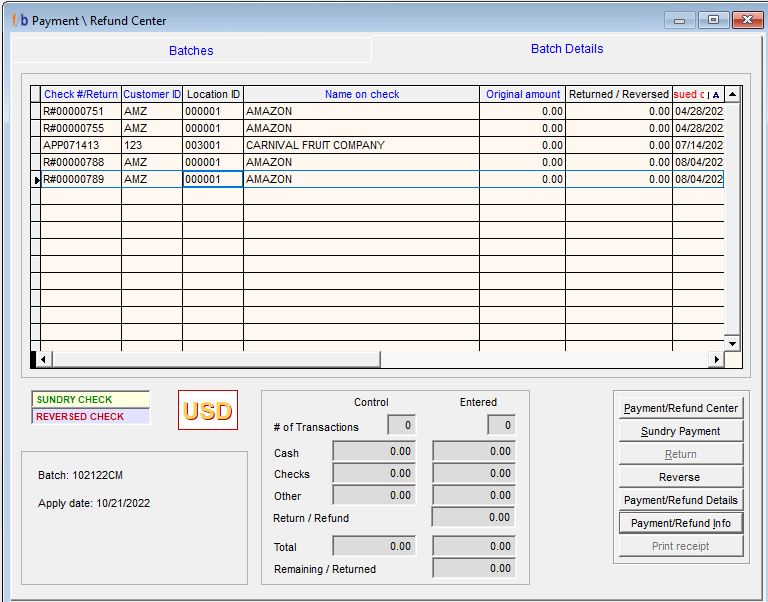
This Zero- Dollar Payment Method allows the user to launch the Payment/Refund Center Screen from batch details to view the details and make changes to the applied credit memos.
Select Payment/Refund Center button
'Select Check'
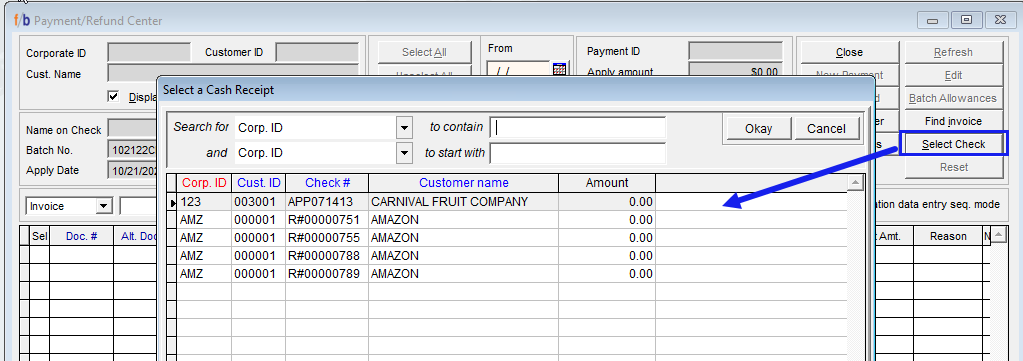 Select the corresponding transaction to open the details. The user can to unapply the credit memo from the Invoice and make any necessary changes needed.
Select 'Edit' to make changes. Enter the changes in the 'Apply field of the Credits and invoices'
Select Save