Maintaining Vendor Expense GL accounts for Payables. Adding and Removing GL accounts
FreshByte offers a feature to store GL expense accounts that are used on Vendor Payable Invoices for regular expenses. The following instructions outline how to delete an incorrect GL expense account from a Vendor Invoice or add GL expense accounts for the Vendor.
1. Go to Vendors -> Vendors.
2. Select the Vendor by clicking the hashtag (#) next to the Vendor ID to populate the Vendor Lookup.
3. Select the correct Vendor by typing the Vendor Name to access the Vendor's account.
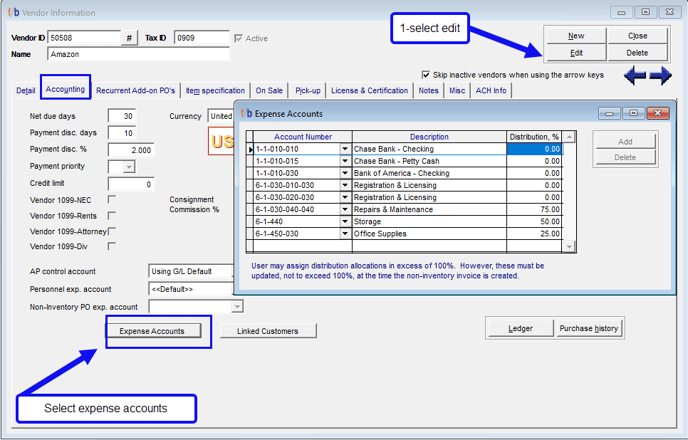
4. Click on Edit and then go to the Accounting tab.
5. In the Accounting tab, click on 'Expense Accounts' at the bottom left of the screen. This will open a window displaying the GL expense accounts.
6. Ensure that your cursor is on the expense account(s) line that you want to delete.
7. Click on the 'delete' button to remove the GL account from the Vendor Expense accounts.
8. Close the window and click on 'Save'.
Additionally, the user can add GL accounts from the Vendor Master screen to automatically populate the correct Vendor Expense accounts when adding a new Vendor by following the steps above and selecting the Add button to add the correct GL Codes. This will help ensure the accuracy of GL Expense codes.
Related Articles
FreshByte -Creating a New Vendor
Creating a new Vendor in FreshByte A Vendor Master file is required for each Vendor. Vendors must be entered in the Vendor Master before a Purchase Order can be entered. Vendors must be created in the system for all expenses for the company. This ...AP Suspense
On an add-on PO, if the font on the line is red, that indicates the line has been invoiced. When a line remains in black font, that line was not included in any payable invoice and therefore remains on the AP Suspense report until invoiced. It is ...FreshByte Apply Customer Credit Memos through the Payment/Refund Center
FreshByte provides the option to apply Customer Open Balances to Credit Memos through the Payment/Refund Center. Zero-Dollar Payments FreshByte recommends applying Customer Credit Memos and Open Receipts to Invoices through the Payment/Refund Center. ...FreshByte Software Shortcut Key Functions
FreshByte Software | Shortcut Keys How to read this guide: ★ marks the most commonly used commands in each screen. For buttons with underlined characters in the FreshByte interface, press ALT + the underlined character to execute that command. Most ...Sales Return Authorization Screen
The Return Authorization system manages returns by allowing the company to issue an RA number without immediately issuing credit. Returned items are evaluated before being returned to inventory and before any credits are issued. Credit Memos can also ...