FreshByte Item Code Set up - Weight classifications
FreshByte Item Code Setup has (3) different options for Master Unit of Measure. 'None', 'Catch Weight', and 'Net Weight.
Note: For half case the factor is 2
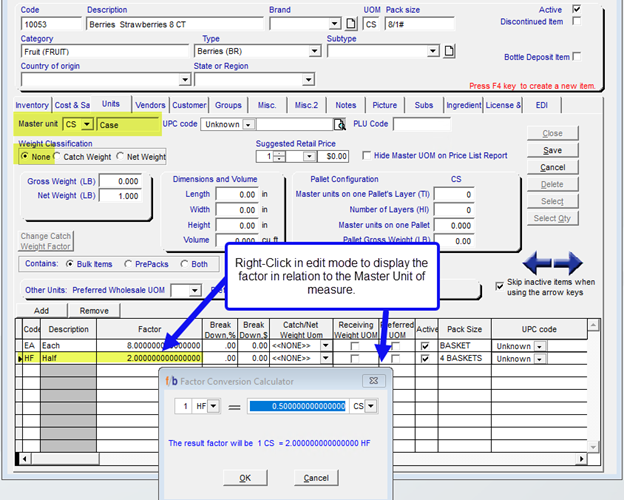
On the Units Tab, the Master Unit is entered (ex. case) and the weight classification radio button underneath the Master UOM must be selected ‘Net Weight’.
For a Net Weight item, the alternate unit of measure section is required. Select 'Add' at the bottom of the screen to add the weighted unit of measure. Ex. lb, or KG. or other weighted unit of measure. The factor at the bottom of the units tab will be in whole units correlating to the total in the Master UOM. In addition, the user must select ‘Net Weight UOM’ in the field labeled Catch/Net Weight. The field will display as purple. The 'Receiving Weight UOM' field must also be checked.
The user has the option to add additional alternate Units of measure if needed. (Ex: EA for eaches)
NOTE: If there are multiple weighted 'Unit of Measures' (UOMs) in the Alternate list, only one should be marked as the preferred unit of measure.
On the Units Tab, The Master Unit must be the Weighted unit of measure (ex. lb.) and the weight classification radio button underneath the Master UOM must be selected ‘Catch Weight’.
For a Catch Weight item, an alternate unit of measure section is required and should be the largest unit purchased/sold such as Case. Select 'Add' at the bottom of the screen to add the alternate unit of measure.
The user has the option to add additional alternate Units of measure if needed. (Ex: EA for eaches)
Related Articles
Inventory -Item Master How to Create Items in FreshByte
Inventory Item Master FreshByte Software is dependent on the company setting up Inventory Items within the system for any item that the company would like to track. This includes both Inventory Items sold as well as supply items used in the packaging ...FreshByte 'Push Items List' Sales Orders
FreshByte includes a ‘Push Items List’ feature that provides companies the option to add a list of items that display at the time of saving the Sales Order. This tool provides a great resource to offer overstock or short-dated items. Push Items ...FreshByte Credit Hold Feature
FreshByte's 'Soft Credit Hold' feature enables users to input orders for customers who have exceeded their credit terms. This feature allows administrative personnel to review orders placed on Soft Credit Hold before authorizing them for processing. ...FreshByte Write-Off Customer Overpayments Balances
FreshByte provides the option to write off Customer Overpayments through a utility function. This feature is dependent on User Security settings. Note: A Sundry Item must be defined in System Settings to use the utility. In addition, the user has the ...FreshByte AR Customer/Payment Refund Import
FreshByte provides a powerful feature that allows users to directly import customer payments into the Payment/Refund Center. This feature seamlessly integrates corporate payments, open receipts, and credits, which can then be assigned to specific ...